The interface at a glance
ApptiveGrid is consistently split in two: a sidebar on the left for navigation, and the content area on the right. What appears in the sidebar depends on where you are.
The Space overview
After signing in, you land on the overview of all Spaces.
Here you'll find:
| Element | Function |
|---|---|
| All Spaces | All Spaces you have access to |
| Shared with me | Only Spaces others have shared with you |
| Create new Space | Creates an empty Space |
| Search Space | Filters the list by name |
| Group by category | Bundles Spaces by an assigned category |
Below that, templates appear under the heading Or start with a template.
If you don't have a Space yet, you'll see the prompt Create your first Space instead.
Inside a Space
Open a Space, and the sidebar switches to the Space navigation. It's organized into three areas:
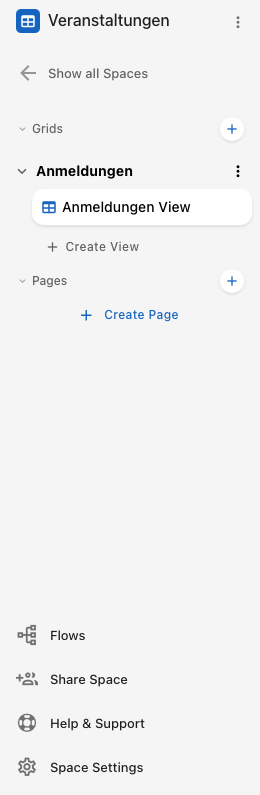
Grids
Your data tables. Under each Grid are two groups:
- Views — every representation of this Grid
- Forms — every input mask of this Grid
Use Create to add a new View or Form.
Long Grid lists
By default, the navigation shows the first 10 Grids; the rest are collapsed behind Show more. You can change this number in the Space settings.
Pages
All Pages of the Space, whether you use them as a Portal or as internal documentation.
Flows
All automations of the Space.
Adjusting the order
Whether Grids before Pages or Pages before Grids appear is set in the Space settings. If your team mainly works with portals, Pages before Grids is usually more practical.
The Grid area
Open a Grid, and you always see a specific View of it — never the Grid itself. Use the sidebar to switch between Views.
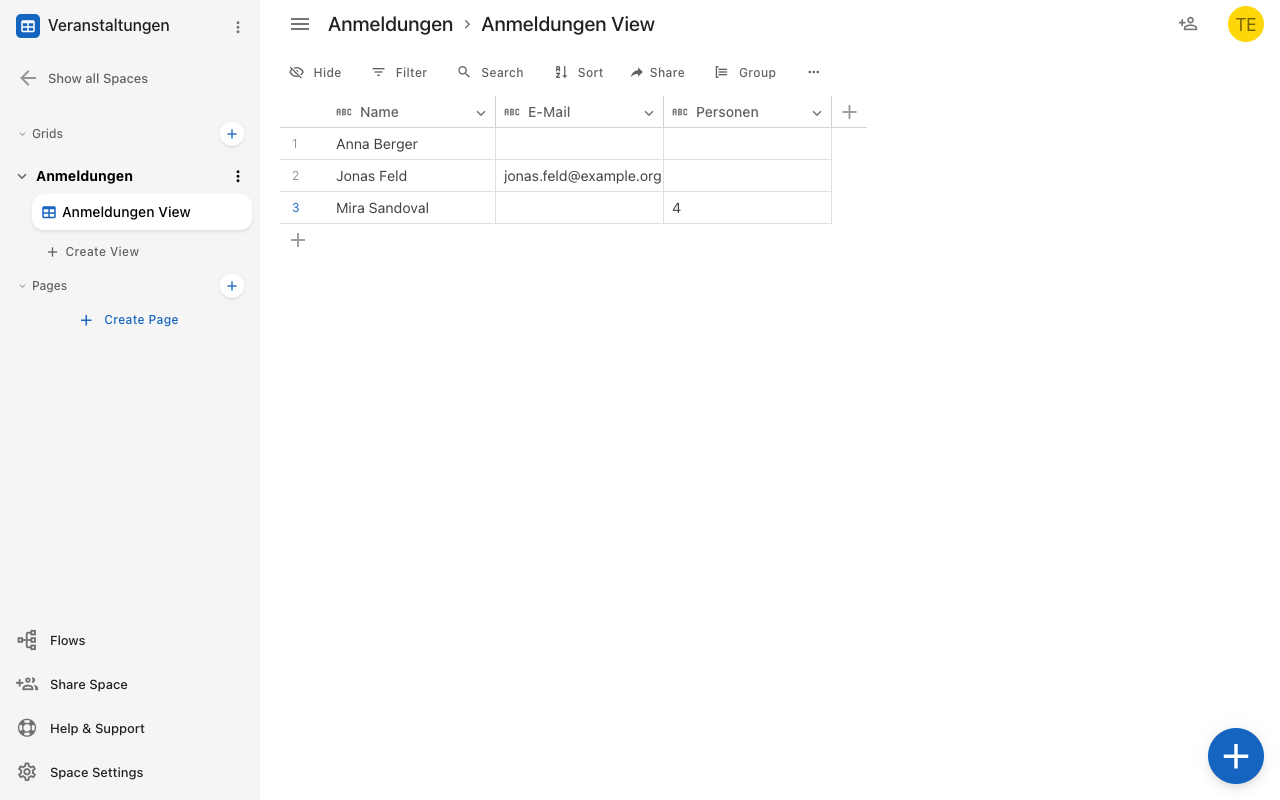
The toolbar above the table contains:

| Tool | Purpose |
|---|---|
| Filter | Determines which Entries are visible |
| Sort | Determines the order |
| Group | Bundles Entries by a field |
| Hidden | Hides and shows columns |
| Search | Searches Entries |
| Share | Generates a link or QR code to the View |
| More (⋮) | CSV export, duplicate, reorder columns, edit empty state |
Clicking a row opens the Entry in detail view.
If a button is missing
ApptiveGrid hides features you don't have permission for — no error message appears. If an expected button is missing, check your Role in the Space. See I can't find a button.
The Form area
The Form editor has three tabs:
- Pages — arrange fields and text blocks, manage form pages
- Layout — colors, logo, background image, field style
- More — save for later, automatic submission, multiple languages
On the left are the fields not yet used, under Available fields. On the right, a preview of the Form builds up.
The Page area
The Page editor works like a text document: you start typing, and pressing the spacebar opens the block picker. The placeholder text reads Start typing or press space to open the block menu.
Use Show structure mode to reveal two additional panels:
- Page structure — the block tree, for reordering and nested layouts
- Block settings — the settings of the selected block
A Page has two modes: Editor for editing and Application for previewing it the way visitors see it.
The Flow area
The Flow editor is a canvas of nodes and connections.
- On the left, you pick new steps, split into Triggers, Actions, and Helpers.
- Clicking a step opens its settings.
- The Center on all nodes, Auto-arrange nodes, and Toggle minimap tools help with large Flows.
The History tab shows past Runs with start time, duration, number of steps, and status.
Settings
There are two separate settings areas — a common source of confusion:
Account settings
Apply to you personally, via Profile & settings:
- Profile — name, profile picture, delete account
- Billing — plan and invoicing
- API Credentials — keys for accessing the programming interface
Space settings
Apply to one Space:
- General — plan, seats, Space identifier, navigation order
- Webhooks — outgoing notifications to other systems
- Links — overview of all external links of this Space
Cross-cutting elements
| Element | Function |
|---|---|
| Search | Searches Entries |
| Help menu | Access to help and what's new |
| Chat | Direct contact with support |
| Fullscreen | Hides the sidebar |
| Change notice | Reports when other people have changed the Grid |
When a new app version is deployed, a notice appears asking you to reload the page.